YouTube playlist range calculator
Main keyword
Set a start and end number to calculate the duration of only that range inside a YouTube playlist.
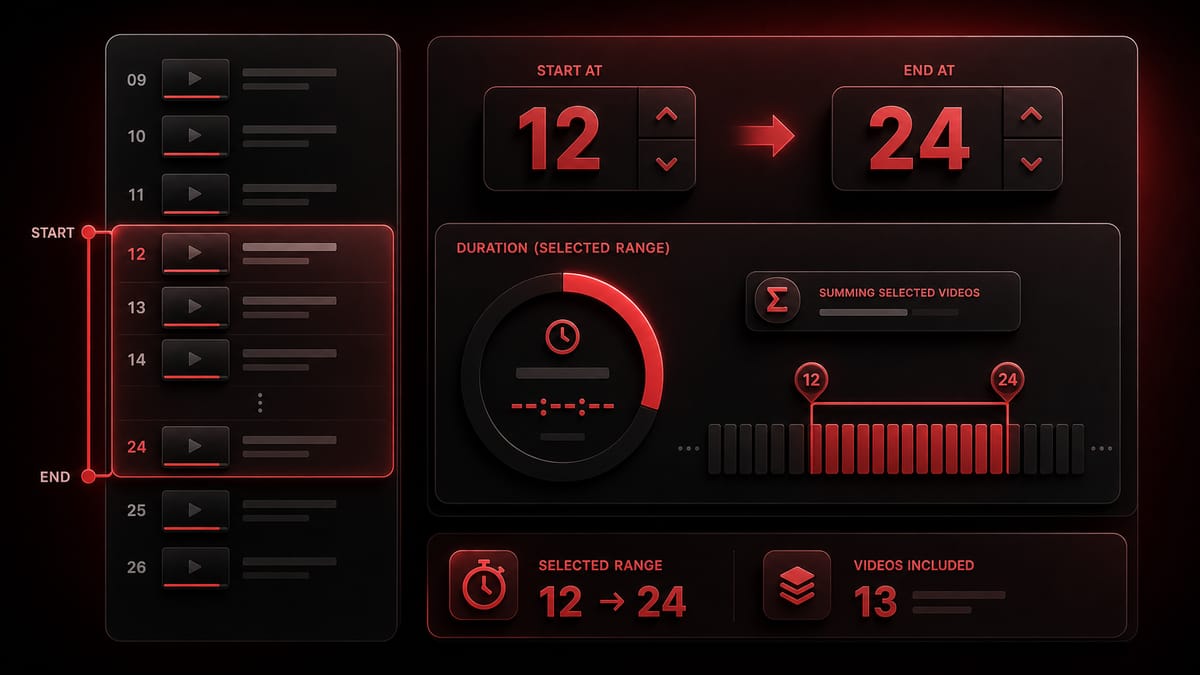
Paste a playlist link, open Advanced options, and set the start and end video numbers. The calculator returns the duration for that selected playlist range, so you can measure a course module, the next chapter, or the part you still have left instead of the full playlist.
Range duration
Calculate videos 12-24, 30-60, or any other start/end section without measuring the full playlist.
Course modules
Use the range fields for chapters, weekly lessons, exam blocks, or the section assigned today.
Speed aware
See how that selected range changes at 1.25x, 1.5x, 1.75x, 2x, or your own speed.
How the range works
The calculator reads the playlist order, applies your start and end video numbers, then adds the durations for that selected slice. If you leave the default range, it works like a normal playlist duration calculator.
Use a YouTube playlist URL, a watch URL that includes a list parameter, or a raw playlist ID. A single video URL still works, but playlist range is meant for ordered playlist sections.
Open Advanced options and enter the first and last video number you want counted. For example, start at 18 and end at 42 to calculate only that part of the playlist.
The result card shows total time for the selected range, counted videos, unavailable videos, faster playback estimates, export, share, and a daily plan.
Selected range
Full playlist duration is useful, but many real plans are smaller: one module, one week of lessons, a remaining section, or a group of videos assigned by number. Start and end fields turn a long playlist into a focused time estimate.
Range search intents
People searching for youtube playlist range calculator usually do not need the whole list. They need a selected section, a remaining block, or a module inside a longer course.
Set a start and end number to calculate the duration of only that range inside a YouTube playlist.
Use it when a teacher, creator, or course plan says to watch videos 8 through 19 instead of the complete playlist.
Measure a numbered block when the playlist order matters and the video titles do not clearly show how long the section is.
Check only the part you need today, this week, or before a deadline without including videos you will skip.
Online courses often use one playlist for many modules. Range duration helps you plan one module at a time.
If you finished the first videos, start the range after the last completed item and calculate the rest.
Range planning notes
A 200-video playlist may be useful as a library, but your real question might be the next 12 videos. The range fields keep the estimate close to the work you actually need.
The first video is number 1. If you enter start 10 and end 25, the calculator counts that ordered section. This is most helpful when a course or assignment references video numbers.
Private, deleted, restricted, live, or missing-duration videos inside the selected range may not be counted. The result shows counted and unavailable items so the partial estimate stays honest.
Range use cases
This page is for practical range questions: a chapter in a course, a set of review lessons, a training block, or the part of a playlist you have not watched yet.
Course modules
A course playlist may contain every lesson from beginner to advanced. The range calculator lets you check one module without counting unrelated lessons.
Paste the playlist, set the module start and end video numbers, and run the calculation.
You know whether that module fits tonight, the weekend, or a longer study block.
Already watched
When you already watched the first part, the full playlist duration overstates the work left.
Start the range at the first unwatched video and leave the end at the last video you need.
You get the remaining section time without pretending the whole playlist is still ahead of you.
Exam review
Review playlists often include extra explanations. A selected range helps you focus on the videos assigned for the next exam or quiz.
Use the range fields for the review block and compare 1x with 1.5x or 2x.
You can decide whether the selected videos fit your available study hours.
Training
Work training playlists are often reused across roles. A new hire may only need one section, not the whole library.
Set the start and end numbers for the assigned training block.
The team can schedule realistic time for the section that matters.
Creators
Creators can check whether a smaller range works better as a beginner path, review path, or quick-start section.
Calculate several ranges and compare their durations.
You can split a long playlist into friendlier sections with clear time expectations.
Mixed playlists
Some playlists include trailers, bonus clips, archived streams, or optional material that should not be part of today’s estimate.
Choose only the section you plan to watch and leave optional items outside the range.
The time estimate matches the plan instead of the entire collection.
FAQ
It is a calculator for one selected part of a playlist. Instead of adding every video, you enter a start video number and an end video number, and the result shows the duration for that range.
Paste the playlist URL, open Advanced options, enter the first video number and last video number you want counted, then calculate. The result uses only that selected section.
Yes. Put 10 in the start field and 25 in the end field. The calculator counts videos in that playlist order and returns the partial playlist duration.
Yes. Start the range at the first video you have not watched yet. If you watched the first 17 videos, start at 18 and calculate the rest or the next block you care about.
Yes. It is especially useful for course modules, weekly lesson blocks, exam review sections, and numbered assignments inside a larger YouTube playlist.
No. The range follows the playlist order returned by YouTube. Video number 1 is the first item in the playlist, then the calculator slices the ordered list by the numbers you enter.
Yes. After the partial duration is calculated, the result card shows common playback-speed estimates, including 1.25x, 1.5x, 1.75x, and 2x.
Yes. Enter your custom speed in Advanced options before calculating. The custom speed applies to the selected range duration.
Private, deleted, live, age-restricted, region-restricted, or missing-duration videos may not be returned as normal videos through YouTube data. The result shows unavailable counts so you can judge the estimate.
A single video can still be calculated, but start/end range is mainly useful for playlists. For one video, the result simply shows that video duration and speed estimates.
Yes. After a successful calculation, the export option downloads a spreadsheet with the playlist summary and video details for the selected result.
Usually no. The site can process normal checks with its setup. If the shared quota is temporarily limited, you can add your own YouTube Data API key for that one request.
No. This is an independent playlist range and duration calculator. It is not owned by YouTube or Google, and results depend on YouTube Data API availability.
Calculate the range now
Use it for course modules, assigned video blocks, remaining lessons, or any selected section of a YouTube playlist.
Related pages
Need the full playlist total instead? Use the playlist duration calculator . If your question is how much time is left after you already watched part of the list, open the YouTube playlist remaining time calculator . For daily finish planning, open the YouTube playlist time calculator . For music playlists, use the YouTube Music playlist duration calculator . For faster playback intent, use the YouTube playlist speed calculator .